IMPORT A DOCUMENTMICROSOFT WORD
Import Microsoft Word documents into your wiki
Import Word .docx files as editable wiki pages while preserving supported formatting and images, with clear warnings when content is simplified.
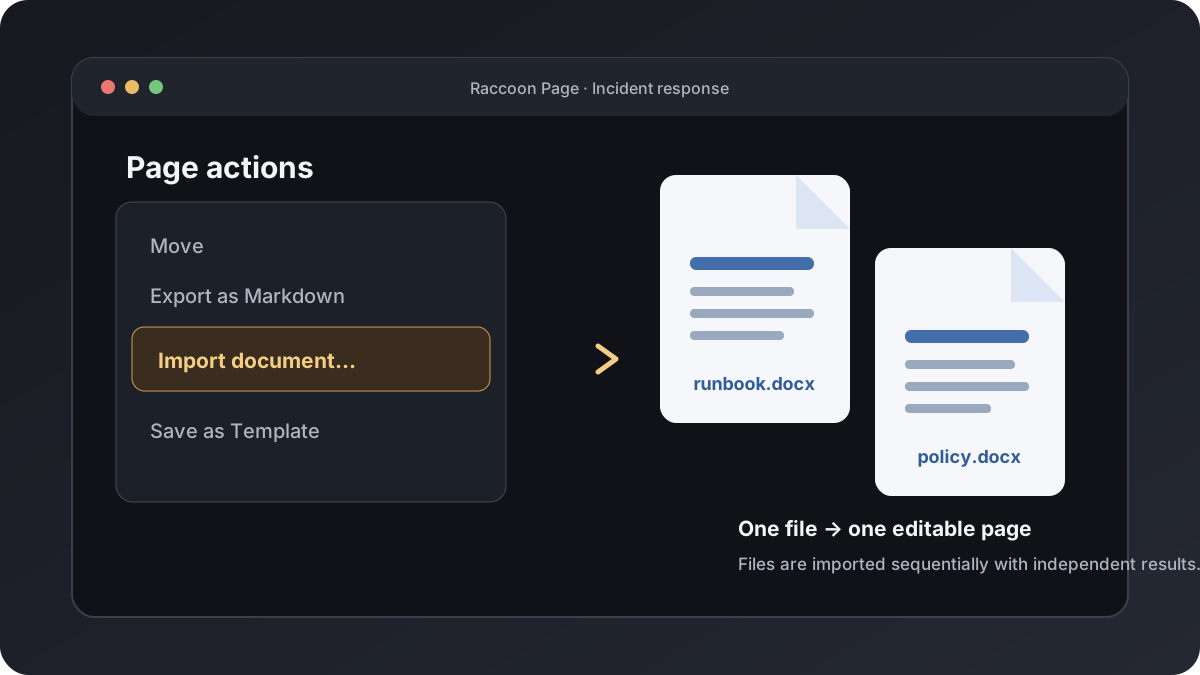
TL;DR. Open an editable page, choose Page actions → Import document…, and select one or more
.docxfiles. Each file is attempted sequentially. Every successful file creates one page; warnings explain content that was simplified or omitted.
What becomes native page content
Word import is semantic. It converts the meaning of a document into editable Raccoon Page blocks instead of trying to recreate paper pages.
| Word content | Raccoon Page result |
|---|---|
| Title-style paragraph | Page title; otherwise the filename is used |
| Headings and paragraphs | Native headings and paragraphs |
| Bold, italic, and strikethrough | Native text marks |
| Ordered and unordered lists | Native lists in reading order |
| Links and blockquotes | Safe links and native blockquotes |
| Code-style text and horizontal rules | Code blocks or preformatted text and rules |
| Tables and line breaks | Native tables and line breaks where representable |
| PNG, JPEG, GIF, and WebP images | Ordinary page attachments with internal URLs |
Limits to know before importing
.docxonly. Legacy.docand macro-enabled.docmfiles are not supported.- No protected files. Encrypted and password-protected documents are not supported.
- 25 MiB per upload. Split a larger document before importing it.
- Up to 100 embedded images. Existing attachment and organization storage limits also apply.
- Normal plan limits still apply. The new page and its attachments count like content created in the editor.
- Semantic, not pixel-perfect. Pagination, floating layout, fonts, themes, headers, footers, comments, tracked-change metadata, drawings, and embedded objects can be simplified or omitted.
The importer never runs macros, follows external file relationships, or fetches externally linked images from the Word package.
Import several files without merging them
The picker accepts multiple .docx files. Raccoon Page submits them one
at a time in selection order, placing successful imports as siblings of
the page you started from. A failed file is recorded in the summary and
does not stop the next file. Files are never merged into one page or
treated as a workspace migration.
What warnings mean
A successful import can still include warnings. Each warning identifies content that could not be represented safely or faithfully—for example, an unsupported image type, an unsafe link destination, or a floating layout that became reading-order content. Supported content remains in the page. A fatal validation, conversion, attachment, or plan-limit error creates no partial page for that file.
Choose the path that matches your source
- Import Markdown documents with the same Page actions workflow.
- Migrate an Obsidian vault when you have a folder tree and wikilinks.
- Migrate a Confluence space from an HTML or XML export.
- Migrate a Notion workspace from its Markdown and CSV export.
Things people ask
- Does Word import work on the Free plan?
- Yes. Word .docx page import is available on Free, Team, and Business. Imported pages and images still count toward the normal page, attachment, and storage limits for your plan.
- Can I import old .doc files?
- No. Import supports .docx only. Legacy .doc, macro-enabled .docm, encrypted, and password-protected files are not supported.
- Can I select more than one Word file?
- Yes. The picker accepts multiple .docx files and attempts them sequentially. Each successful file creates an independent page, and one failure does not prevent later files from running.
- Will the result look exactly like Word?
- No. The importer preserves document meaning rather than Word pagination. Supported headings, text formatting, lists, links, tables, code-style text, and images become native page content; unsupported layout can be simplified or omitted with a warning.
- Where does the page title come from?
- The first non-empty paragraph using Word's Title style becomes the page title. If the document has no such paragraph, Raccoon Page derives the title from the filename.