MIGRATE A WORKSPACECONFLUENCE
Confluence import: HTML/XML spaces and limits
Import a Confluence HTML or XML space export into Raccoon Page. Check page structure, attachments, macros, and migration limits before moving your team.
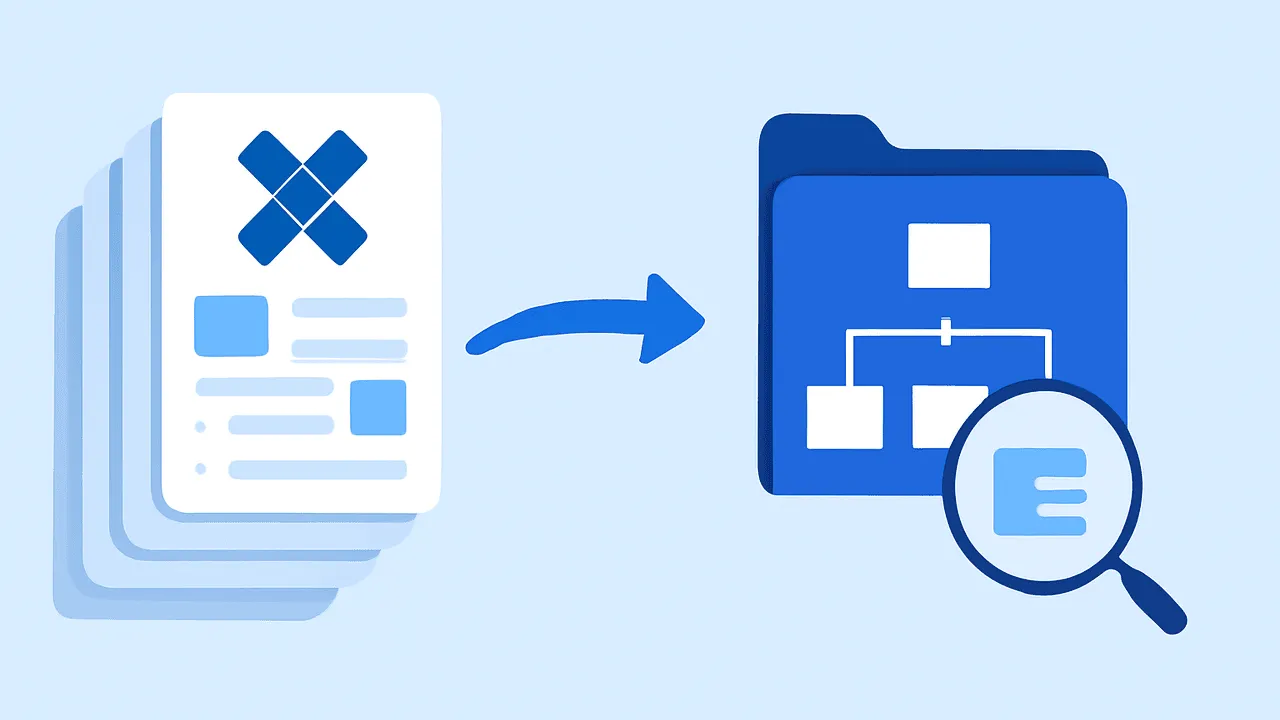
TL;DR. Export your Confluence space as HTML, sign up for Raccoon Page, and test the zip in the import wizard. XML space exports are also supported. Review pages, attachments, and links; macros are best-effort, and original authorship and edit history are not restored.
Export guidance checked on September 28, 2026. Use the Confluence export guide to choose a format for your Confluence edition. This importer accepts HTML/XML, not Confluence Cloud CSV, PDF, or Word exports.
What we import
| Confluence concept | What it becomes in Raccoon Page |
|---|---|
| Space | Space |
| Page hierarchy (parent → child) | Page hierarchy |
| Page body (rich text) | TipTap document |
| Attachments | Page attachments |
| Page authors and edit history | New version attributed to the importing user; no original history |
info / note / tip / warning macros |
Native callouts |
code macros |
Fenced code blocks |
| HTML tables | Native tables |
| Supported internal page links | Resolved against imported pages; verify the targets |
| Labels present in XML export | Page labels |
What we don't import (yet)
- Atlassian-only macros like JIRA issue lists or roadmap macros. They land as a comment block with the original source — you decide what to do with them.
- Templates from Confluence's template library. Export the template page itself; we treat it as a regular page on import.
- Original comments, permissions, and edit history. Do not use this importer as an archival restore. Keep the original system or a separate archive if those records matter.
- Confluence whiteboards and databases. These are not converted into working Raccoon Page equivalents by the XML page importer.
- User mentions tied to Confluence accounts. They land as plain-text names. Re-mention people in your team and the link resolves.
The step-by-step
- Download an HTML or XML space export and keep the original zip. Follow the edition-specific steps in the export guide linked above.
- Use Team or Business, or start a Team trial. The trial keeps Free-plan numeric limits; existing content also counts toward them. Check pricing and start with a small sample.
- Open Import Space, choose Confluence, select the
.zipfile, and enter the new space name. Submit the import to queue the job. - Review the import: count of pages, attachments preserved, macros translated, anything that landed as a comment block.
- Test a search, a deep page, and the navigation.
Keep Confluence available until the imported result has been reviewed. Check at least one nested page, image, table, code block, internal link, and unsupported macro. A successful job is not a full-fidelity restore.
Things people ask
- Will my page IDs match?
- No. Imported pages receive new IDs. Check internal links against their intended targets. External links to the old Confluence site remain external; importing does not create redirects there.
- What if my export is huge?
- Processing time depends on the archive and workload; there is no guaranteed duration. Check page and storage limits first, test a small export, and allow time to review the result. The import job runs in the background.
- Does it restore Confluence authorship and version history?
- No. Imported pages start with a new version attributed to the person running the import. Historical Confluence page versions are filtered out of XML imports; the original edit-history timeline is not restored.
- Can I roll back?
- Yes. Delete the imported space. Your Confluence export zip is still on your machine and the import is non-destructive on the Confluence side.
- Why is the importer Team and Business only?
- Confluence workspace import is included on Team and Business. The 14-day Team trial includes it while retaining Free-plan numeric limits: 3 users, 1 space, 50 pages, and 100 MB storage.