IMPORT A DOCUMENTGOOGLE DOCS
Import a Google Doc as an editable wiki page
Copy one native Google Docs tab into Raccoon Page with one-time read-only access. No Drive browsing, saved Google connection, or ongoing synchronization.
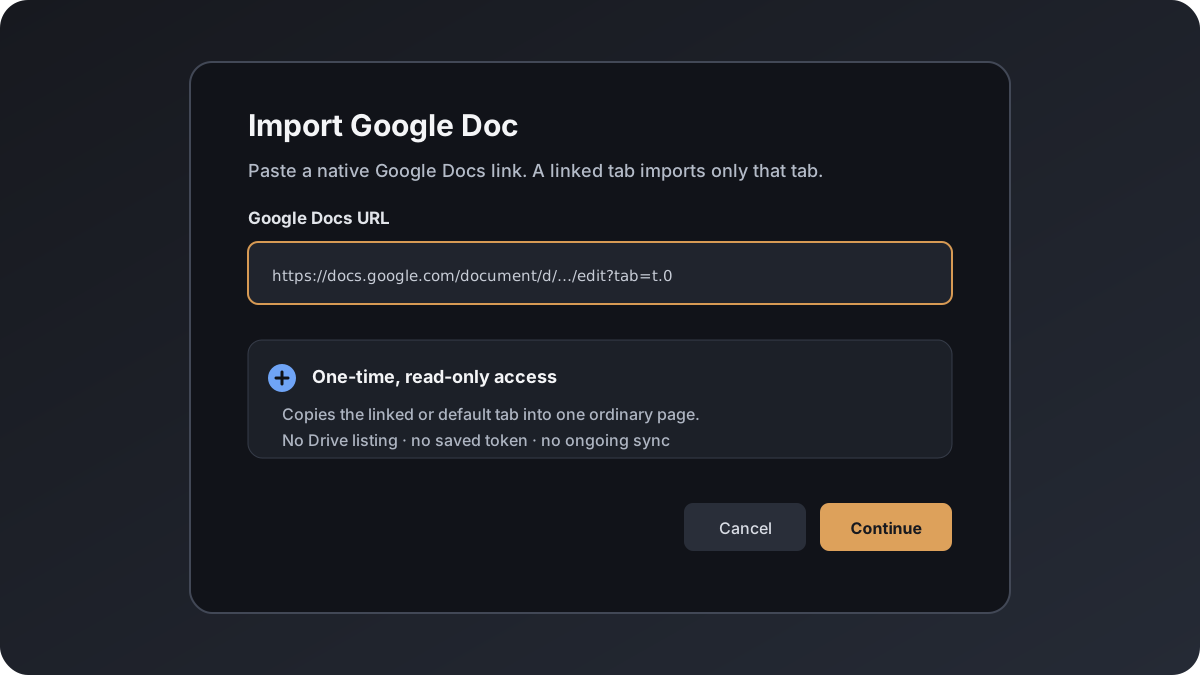
TL;DR. Open an editable page, choose Page actions → Import Google Doc…, paste a native
docs.google.com/documentURL, and grant the one-timedocuments.readonlyscope. Raccoon Page copies one linked tab—or the default first tab—into one independent snapshot.
One URL, one selected tab, one snapshot
Raccoon Page reads the native Google Docs model through the official Docs API. It does not scrape HTML, convert through Word, or export through Drive. When the submitted URL contains a valid linked tab, only that tab is imported. Without a tab, only the default first tab is imported.
The result is one ordinary published page. It does not keep a source URL or synchronization metadata. Importing the same document again creates a separate snapshot rather than overwriting or reconnecting the first page.
What comes across
Supported content includes paragraphs; Title, Subtitle, and Heading 1–6 structure; bold, italic, strikethrough, highlight, safe links, line breaks, ordered and unordered lists, horizontal rules, and representable tables. Supported PNG, JPEG, GIF, and WebP images become ordinary Raccoon Page attachments.
Some Google-specific structures have no exact wiki equivalent. Merged tables can become a rectangular reading-order table. Positioned images move into reading order. Pagination, page and section breaks, drawings, equations, tables of contents, comments, suggestions, fonts, and layout metadata can be previewed, simplified, omitted, or reported with visible warnings according to the shipped importer contract.
Contextual access, not a Google connection
Google asks for one-time, read-only documents.readonly access after you
explicitly start an import. Raccoon Page does not list your Google Drive,
request a Drive-wide scope, or search for unrelated files. It does not
synchronize the created page with Google Docs.
After the request, Raccoon Page does not retain your authorization code, access token, refresh token, submitted source URL, or Google account connection. The copied page content and supported images remain as ordinary Raccoon Page content until you delete them. Read the complete Google Docs import disclosure in the Privacy Policy.
Limits and failure behavior
Normal page, attachment, storage, and plan limits apply. Very large document responses, more than 100 selected-tab image references, more than 100 MiB of downloaded image data, or converted content beyond editor limits are rejected without creating a partial page. If a required image cannot be acquired safely, the whole import fails rather than leaving an incomplete snapshot.
Other ways to bring documents in
- Import Microsoft Word documents from
.docxfiles. - Import Markdown documents from
.mdfiles. - Migrate an Obsidian vault when the source is a folder tree.
Things people ask
- Does Raccoon Page browse my Google Drive?
- No. Raccoon Page does not list your Google Drive, request a Drive-wide scope, or provide a Drive picker. It reads only the native Google Doc URL you explicitly submit.
- Does the imported page stay synchronized with Google Docs?
- No. Raccoon Page does not synchronize after import. The result is an independent snapshot stored as ordinary page content and attachments. Import the URL again if you want a new snapshot.
- Which tab is imported?
- A URL linked to a specific tab imports only that linked tab. A URL without a tab imports only the document's default first tab. Other tabs do not create pages.
- What Google credentials does Raccoon Page retain?
- None. Raccoon Page does not retain the authorization code, access token, refresh token, submitted source URL, or Google account connection after the one-time import.
- Which plans include Google Docs import?
- The page-import capability is designed for Free, Team, and Business when the Google Docs integration is enabled. Normal page, attachment, storage, and plan limits still apply.