IMPORT A DOCUMENTMARKDOWN
Import Markdown files as wiki pages
Import one or more Markdown files into Raccoon Page. Each .md file is processed independently and becomes one editable wiki page.
Available on Free, Team, and Business
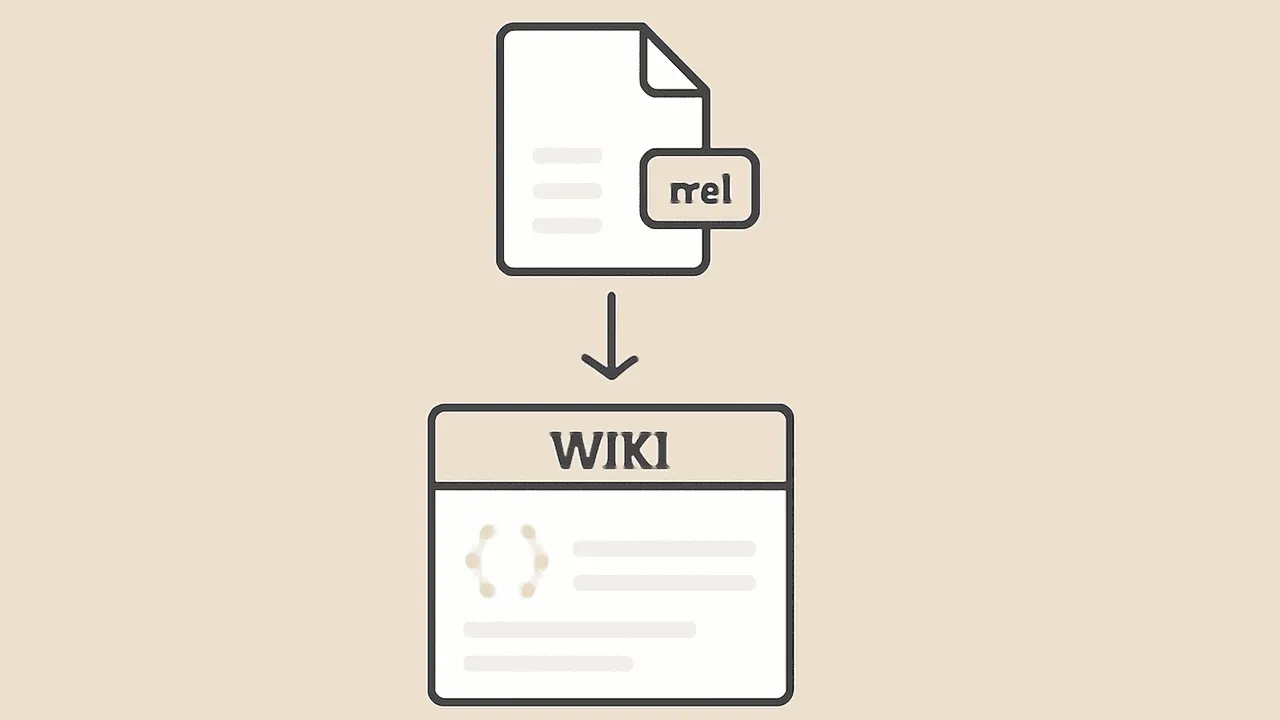
TL;DR. On an editable page, open Page actions → Import document… and select one or more
.mdfiles. Files are processed sequentially. Each successful file becomes an independent sibling page, and the final summary keeps a failed file from hiding the pages that already imported successfully.
When to use this
- You drafted a doc in your favourite markdown editor and want to publish it to the wiki.
- You found a useful README or design doc on GitHub and want it in your team's space.
- You exported a single page from another tool and just need that one page — not a whole tree.
- You asked an LLM to write something and want it in the wiki with a real edit history.
For a folder of markdown files (or a whole vault), use the Obsidian importer — it handles directory trees, wikilinks, and attachments together.
What we import
| Markdown concept | What it becomes in Raccoon Page |
|---|---|
.md file |
One page |
| First-line H1 | Page title; removed from the imported body |
| Filename | Page title when there is no first-line H1 |
ATX headings (#, ##, ...) |
TipTap headings with stable anchor IDs |
| Lists, ordered + unordered + task | Native lists, including task lists |
| Tables | Native tables |
| Fenced code blocks | Fenced code blocks (language hint preserved) |
| Images with reachable URLs | Image references |
| Inline links to URLs | Plain links |
Inline math ($x^2$) |
Inline math nodes |
What we don't import (yet)
- Cross-page references. A
[Page](./other.md)link points at a file that isn't in this import — it lands as plain text with the original href preserved. If you want internal resolution, use the Obsidian importer with both files in the same upload. - Local image files. The document picker accepts
.mdand.docx, not a sidecar asset folder. A relative image reference therefore does not upload the referenced file. Use the Obsidian vault importer when Markdown pages and attachments must travel together. - YAML frontmatter as metadata. Frontmatter remains part of the Markdown body; it is not mapped to page tags, authors, or dates by this page-level path.
- MDX components and Hugo / Jekyll shortcodes. They land as plain text. We don't run a static-site renderer.
The step-by-step
- Open the space where you want the page to land.
- Open any editable page and choose Page actions.
- Choose Import document… and select one or more
.mdfiles. The same picker also accepts.docxfiles. - Raccoon Page processes the selection sequentially. Each successful file creates one sibling page under the current page's parent.
- Review the completion summary for imported files, warnings, and failures. Imported pages are ordinary editable pages.
Things people ask
- Can I overwrite an existing page?
- No. The single-page importer only creates new pages. To overwrite, edit the page directly and paste the markdown into the editor — the editor accepts pasted markdown and converts it on the fly.
- What happens to images that are already on the web?
- External image URLs stay as external references. Raccoon Page does not re-host them. If the source disappears, the image breaks.
- Can I import multiple .md files at once?
- Yes. Select multiple .md files and Raccoon Page processes them sequentially. Each successful file creates its own sibling page, while a failed file does not roll back pages that already succeeded.
- Where does the page title come from?
- A first-line H1 becomes the title and is removed from the page body. Otherwise Raccoon Page derives the title from the filename. YAML frontmatter is not mapped to page metadata.
- Is this on Free?
- Yes. Single-page markdown import works on every plan, including Free. The page count limit on Free still applies — imported pages count toward your 50-page allowance.